
Help Centre · Integrations
Use HighLevel with CardToClose
Connect your subaccount, choose what to copy, then try a small batch. This guide shows the controls you will use.
Last updated 8 October 2026
CardToClose → HighLevel, one way. Sync copies saved contact details and readable Notes. It does not send a follow-up or enrol a workflow. Later syncs can replace copied fields and Notes edited in HighLevel, so maintain those copied details in CardToClose.
- Check the four HighLevel permissions, then connect your subaccount.
- Choose the information to copy.
- Try a small manual batch and check HighLevel.
- Enable Automatic or Daily when you are ready.
Before you start
Check access, contact identity and offline captures
Transfers go one way: CardToClose → HighLevel. Changes in HighLevel are not imported. Later syncs can replace selected fields and Notes edited there, so maintain those copied details in CardToClose.
- Use the correct CardToClose workspace as an account administrator and a HighLevel subaccount you are authorised to connect.
- There is no fixed contact-count cap. Matching a contact without a saved HighLevel ID checks the complete destination contact list. Very large or changing lists can exceed the transfer time limit; matching then stops before a new contact is created.
- Contacts need first name, last name and a valid email for strict matching. Selected phone numbers need international format, such as +971….
- Sync copies available saved information, including AI-generated meeting summaries and follow-up drafts. Missing summary or follow-up content does not block a contact, and review or message approval is not required. Later saved changes update the same contact and Notes. Sending the follow-up is not required.
- Phone captures must first reach the CardToClose server. Device-only offline changes are not available to CRM sync.
1. Connect HighLevel
In your HighLevel subaccount, open Settings → Private Integrations. Create a named integration, or edit the one you already use.
Existing integration: three-dot menu → Edit → Next → check all four permissions below → Update.
contacts.readonly— read and match contacts.contacts.write— copy contact details and Notes.locations.readonly— read the chosen subaccount.locations/customFields.readonly— check Event and Position fields.
Check the last two carefully if you see a location or custom-field permission error. HighLevel keeps the existing token when you edit permissions; you do not need to regenerate or share it.
Connect your subaccount
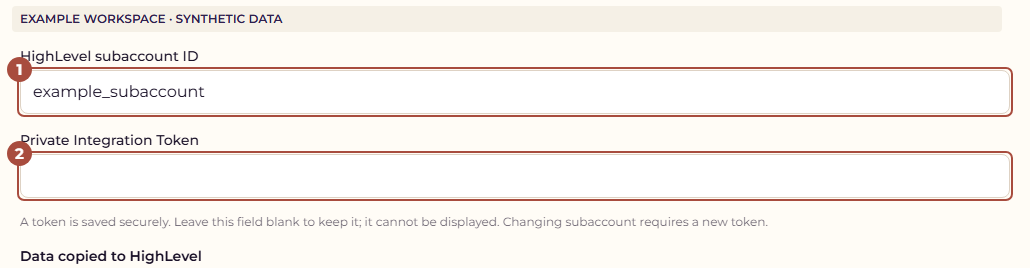
In CardToClose, open Settings → Workspace integrations → Manage HighLevel. Enter the subaccount ID and token. Keep the token private.
 (opens full size in a new tab)
Saving the destination, token or data choices turns background sync off. Enable it again after checking the new settings.
Token safety and changing an existing connection
Enter the token only into the connection form. Never put it in chat, screenshots or support requests. When changing existing settings, leave the token blank to keep it. A different subaccount requires a token for that destination. Changing choices affects future copies; it does not erase data already transferred.
2. Choose what to copy
No custom fields are required for ordinary contact sync. Selected Event and Position details are kept in readable contact Notes. For optional searchable fields, create a Contact Single line text field named CardToClose Event or CardToClose Position under Settings → Custom Fields. CardToClose also fills each field when exactly one compatible field exists; otherwise the details remain in Notes. CardToClose does not create fields automatically. Explicitly confirming a change to a current Position still requires a verified Position field; previously confirmed fields must remain available.
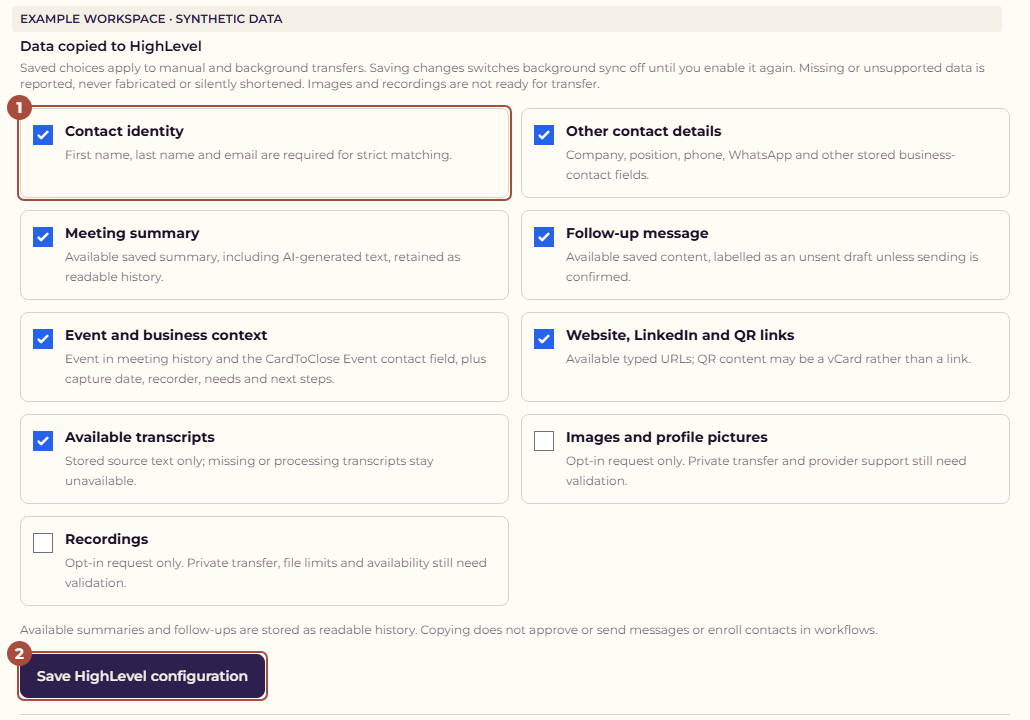
Keep Contact identity selected. Choose any other saved information you want in HighLevel, then choose Save HighLevel configuration.
 (opens full size in a new tab)
See where each piece of information appears
- Contact identity
- First name, last name and email appear on the HighLevel contact and are used for matching.
- Other contact details
- When selected, company and international phone appear on the contact. Position and WhatsApp are retained in readable meeting history. Position also fills the optional CardToClose Position Contact Single line field when available.
- Meeting summary
- A readable Meeting Summary Note attached to the contact, using the saved human correction when available or the available AI-generated summary.
- Follow-up message
- Available saved follow-up content in a separate contact Note, clearly labelled as an unsent draft unless sending has been explicitly confirmed. Copying does not approve the draft.
- Available transcripts
- A separate Meeting Transcript contact Note containing the completed source text.
- Event and business context
- Event, capture information, recorder and available context in the meeting Note. Event also fills the optional CardToClose Event field when available.
- Website, LinkedIn and QR links
- A valid website updates the contact’s Website field. Available typed links are also retained in readable history. A QR may contain a vCard rather than a URL.
- Images, profile pictures and recordings
- Not transferred in this release. Selecting these options does not enable media delivery.
Meeting information always uses contact Notes. The meeting-date label currently reads Not recorded. The capture date is shown separately when Event and business context is selected. Copying meeting information does not create an appointment.
The Event contact field reflects the latest transfer. Each encounter’s meeting Note retains its own Event history. The placeholder Event is consistently called One-off contacts. Missing or deselected Event data does not clear an existing HighLevel Event value.
Copying a follow-up does not send it. It does not send email, SMS or WhatsApp, create a Conversation or appointment, or enrol a workflow. Use your normal sending process and explicitly confirm sending where appropriate.
3. Try a small batch
- Under Manage HighLevel, open Choose contacts to sync.
- Filter by Event or search for contacts. Tick individual contacts or choose Select all in this view. Select all covers every page in that Event/search. With no filter, it selects all eligible workspace contacts.
- Choose Review selected contacts. Inspect the destination, copied fields and readable Notes using the review page controls.
- Choose Sync ready contacts to HighLevel to confirm the transfer. Keep the page open while the manual batch runs.
- Check the results in HighLevel and the remembered sync status in CardToClose.
Unchanged, previously synced contacts are skipped. Blocked contacts remain visible with their reason. If a write cannot be verified, the batch stops before the next contact. Inspect the result and review the remaining contacts to continue; do not recreate records blindly.
Confirm a job change
Show identity and job-change instructions
A same-name contact with a different email needs an administrator’s individual review. Under Choose contacts to sync, use Review identity and job change for that encounter. Bulk selection and its checkbox do not confirm a person’s identity.
- Load identity evidence, compare the existing contact’s email, company, position and dated Notes with the proposed values, and select the exact HighLevel contact. Use the candidate page controls; omitted Notes or older job-change history are labelled.
- Check the saved data choices and omissions. Contact identity is required. Company, phone and position copy only when Contact details is selected; omitted or blank values preserve populated destination fields.
- Explicitly confirm that this is the same person with a new job and that the displayed selected details should become current, then choose Confirm job change and sync this encounter.
A separate dated history Note preserves the actual previous HighLevel email, company and position before current fields change. It records when the values were observed and when you confirmed them; the actual job start date remains unknown. Earlier encounters retain their own meeting and follow-up history. Re-syncing an old encounter updates its Notes and does not restore its earlier job details.
Changed source details, saved settings or destination values require a fresh review. A conflicting email or phone belonging to another contact remains blocked. Background sync cannot confirm a new identity or job change; resolve it manually.
If a history Note or contact update returned a verified destination ID but final verification is pending, inspect the receipts and reload evidence before an explicit continuation. CardToClose checks the saved destination record without creating or updating it again. A write without a verified ID remains uncertain and blocked because it may already have succeeded; inspect HighLevel and contact support before retrying.
If the job change is already confirmed and only encounter Notes remain, use Review selected contacts → Sync ready contacts to HighLevel to finish those Notes. Do not confirm the job change again. Confirmation and copying remain one way and do not send messages or create appointments.
4. Enable automatic or daily sync
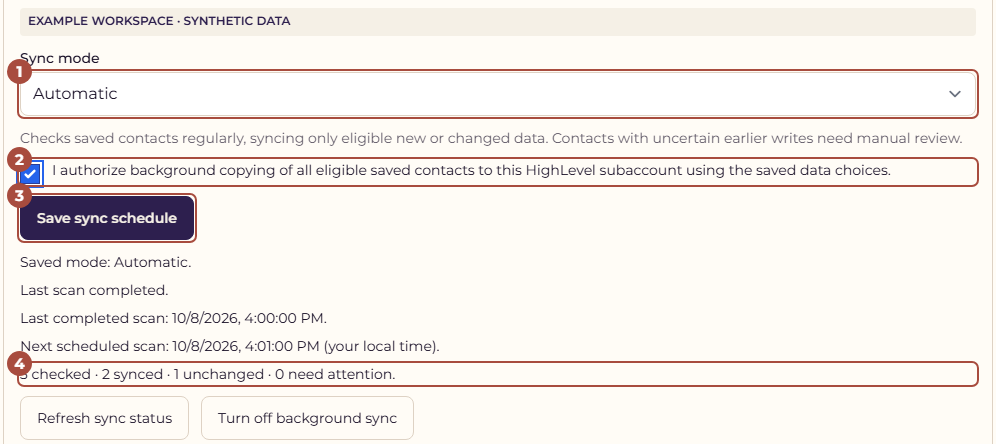
Open Manage HighLevel → Sync schedule. Choose a mode, review and tick the background-copy authorisation, then choose Save sync schedule.
 (opens full size in a new tab)
Compare modes, daily times and access requirements
- Manual only
- Nothing copies in the background. Use the manual bulk flow.
- Automatic
- Periodically checks all eligible saved contacts, including existing contacts, new contacts and later changes. It works when your browser is closed.
- Daily at a chosen time
- Checks the same contacts once daily at the selected UTC time. The page shows the equivalent in your browser’s time zone.
Background modes cover the whole workspace. The manual Event filter does not restrict them. For 20:00 Dubai time, choose 16:00 UTC. The saved schedule follows UTC; local time can change in countries that observe daylight saving. A missed daily scan is picked up when the service resumes.
Background scans copy available saved data even while a contact is processing or awaiting review. Missing content can arrive on a later scan, and saved changes update the existing contact and Notes. Matching, access and uncertain-transfer checks still apply. Use manual selection to choose exactly which contacts leave your workspace.
Use Refresh sync status to see the last/next scan and counts. Choose Turn off background sync or save Manual only to stop future copies. An already running transfer may finish.
The enabling administrator must remain active, processing permission must remain current and the workspace must retain product write access. Access problems pause copying until resolved.
Changes and progress
Successful contact and Note IDs are remembered. Later changes update those saved records; later encounters retain separate readable history. Re-running unchanged data does not create another copy.
Understand scan counts and matching
- Checked: contacts examined by the scan.
- Synced: contacts successfully copied or updated.
- Unchanged: confirmed copies with no selected-data changes; no new write was needed.
- Needs attention: contact data or an earlier transfer requires review.
- Paused: copying cannot proceed with the current access or settings.
A saved, verified contact ID is used first. Otherwise, matching requires the same first name, last name and email, ignoring casing and extra spaces. A same-name contact with a different or missing email stops the transfer for review; it is not automatically merged, overwritten or duplicated.
An uncertain provider response is not automatically replayed because the original write may already have succeeded. Check the existing HighLevel contact and Notes before resolving it. Invalid data on one contact does not stop background scans from examining later contacts.
Troubleshooting
Find a sync problem and its next step
- No contacts available
- Clear Event/search filters, check identity details and international phone format, and confirm phone captures reached the server. Check whether contacts are already synced or blocked.
- Sync button disabled
- Read the explanation. Review your selection, tick confirmation and check that changes are ready to copy.
- Summary or follow-up missing
- Sync can copy available contact details now. Once readable summary or follow-up content is saved, sync again or let the next background scan update the same contact and Notes.
- Possible existing contact
- Use the individual Review identity and job change flow to compare and select the exact same person. A conflicting email or phone requires resolution before confirmation; changing the name to bypass this check is not a resolution.
- No Event or Position custom fields
- Ordinary sync keeps these details in contact Notes without custom setup. Optional searchable fields must be unique Contact Single line fields with the exact names above.
- Confirmed Position change blocked
- A confirmed current-position change requires one verified CardToClose Position Contact Single line field. If a previously confirmed field was removed or changed, restore it and reload evidence before updating current job details.
- Connection or permission error
- Check the subaccount and all four permissions above, including location and custom-field read access. Edit the existing Private Integration permissions and choose Update; its token stays the same. Replace a token only if it is invalid or revoked.
- Background sync stopped after editing settings
- Review the saved destination/data choices and explicitly enable the schedule again.
- Paused for access
- Resolve trial/subscription, processing consent or the enabling administrator’s access, then refresh the status.
- Uncertain transfer or needs review
- Inspect the existing destination record. Do not create another contact or blindly replay the write.
- Destination contact list could not be verified
- A temporary request problem, changing list or transfer time limit can stop matching. Check the connection and review before retrying. Changes may take a few seconds to appear in HighLevel search, so wait before retrying a recent change. Very large lists may still exceed the time limit. Existing confirmed copies are remembered.
Removing the saved CardToClose configuration does not revoke the HighLevel token. Revoke it in HighLevel when no longer needed.
Media transfer, scheduled Event subsets, additional CRM providers and two-way sync are not available yet. No mobile app update is needed; these controls are on the web.
Contact support